Postman Configuration
-
Open Postman application (Download on your laptop or Login via WebBrowser from https://www.postman.com/downloads/
-
There are two options:
- Create a Blank collection and continue to steps 3-9
- Import this collection file: “TAPSTOREAPIs Stage Collection.postman_collection.json” that is shared by the Trimble team and proceed to obtain a token.
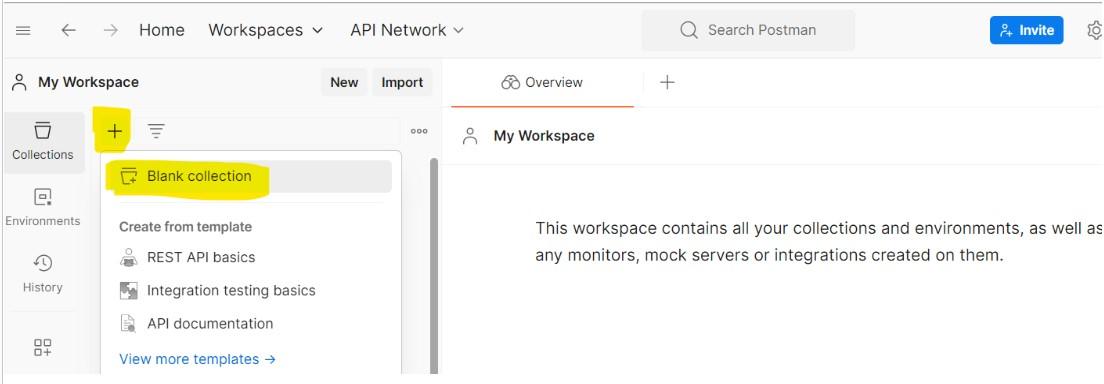
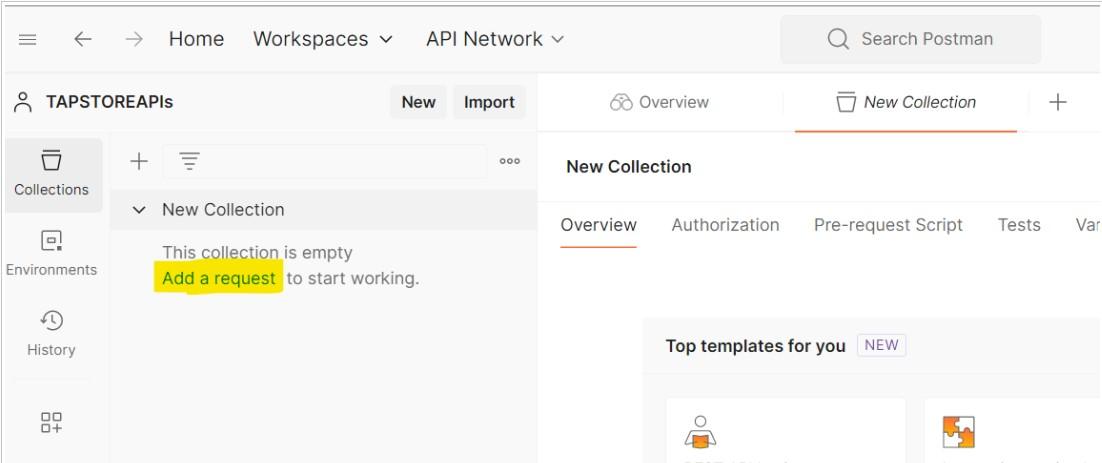
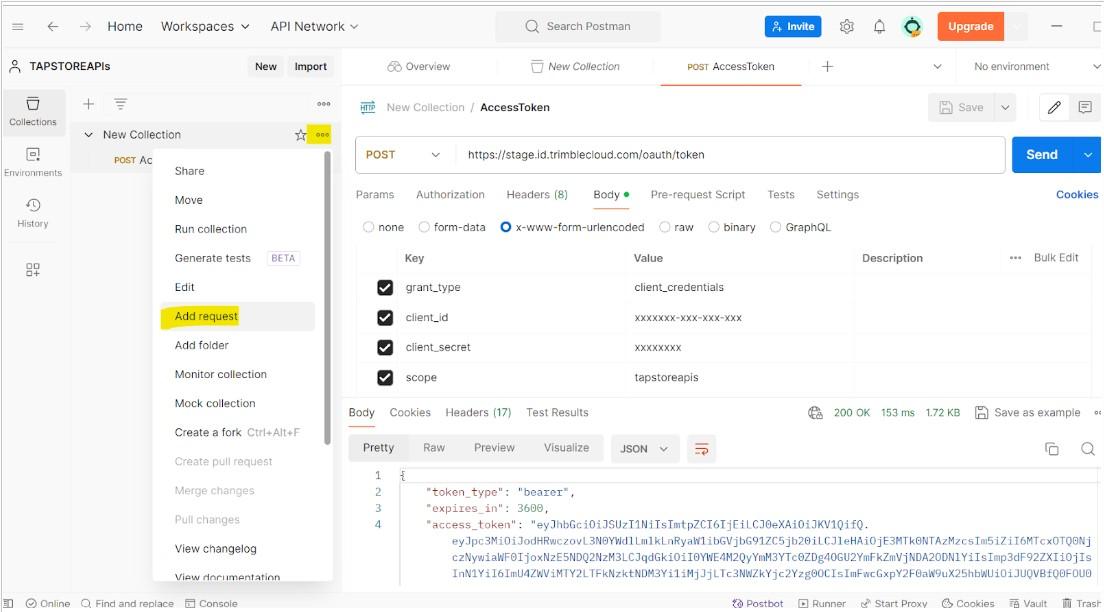
- Click “Add a request” hyperlink to create a new request for getting the access token.
-
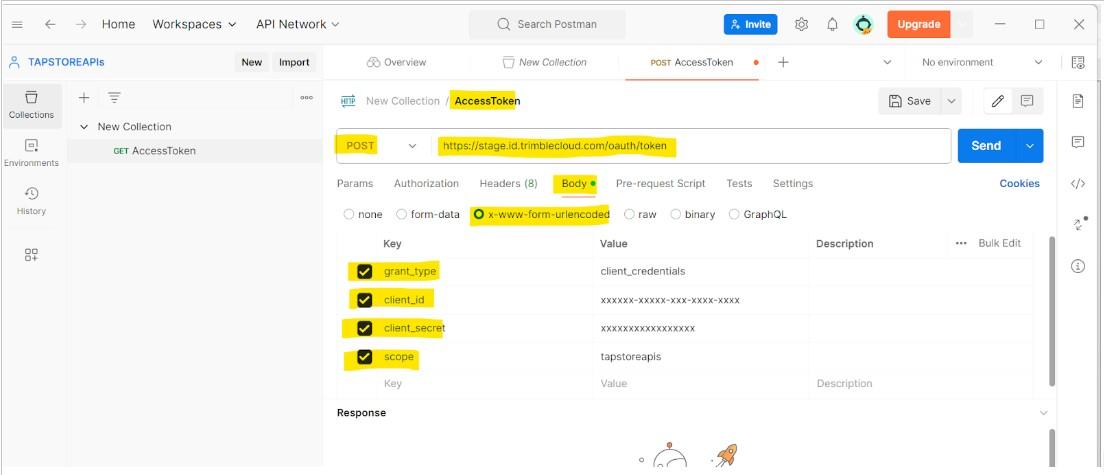
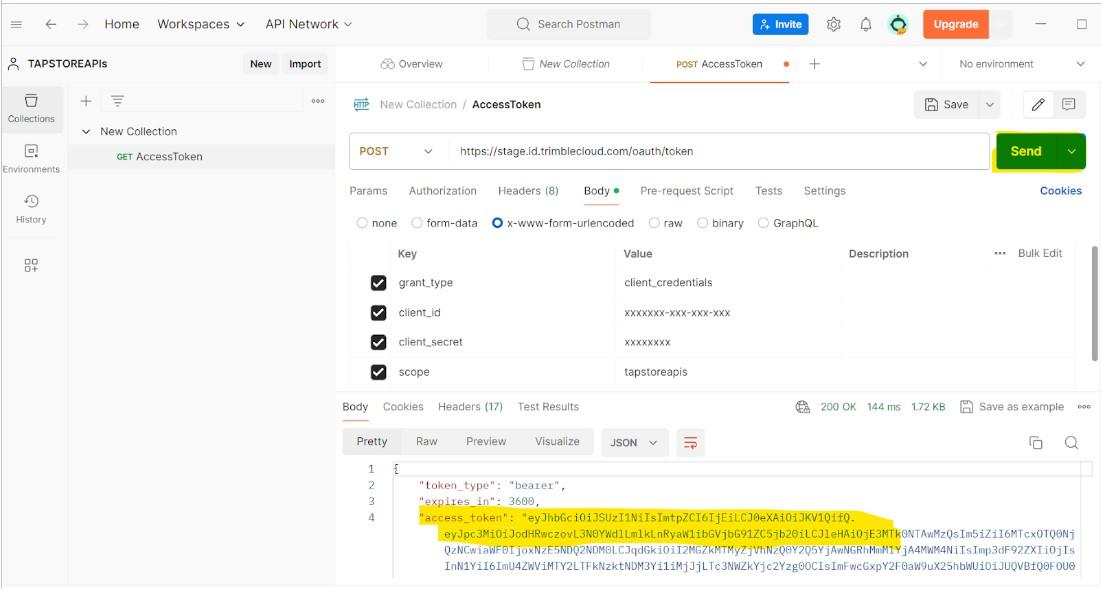
Rename the new collection as AccessToken and use url as below-
NONPROD - https://stage.id.trimblecloud.com/oauth/token
PROD - https://id.trimble.com/oauth/token
-
Select method as POST
-
In the Body add below parameters: Please refer below screenshot:
grant_type client_credentials
client_id Will be provided during OnBoarding
client_secret Will be provided during OnBoarding
scope tapstoreapis
-
-
After completing Step 4 click the send button and access_token should be generated. In case if the setup is not correct, an appropriate error message will be displayed. This access_token can be used to get the access to the API’s.
- For Accessing the API’s. Create a new Request using the “Add request” option.
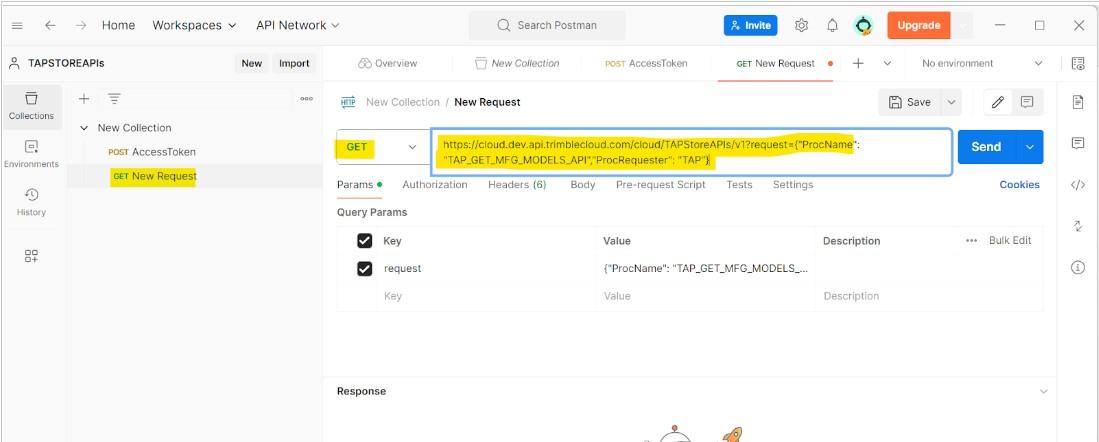
- Select the appropriate method (GET or POST) and use the API url mentioned in the User Guide document.
-
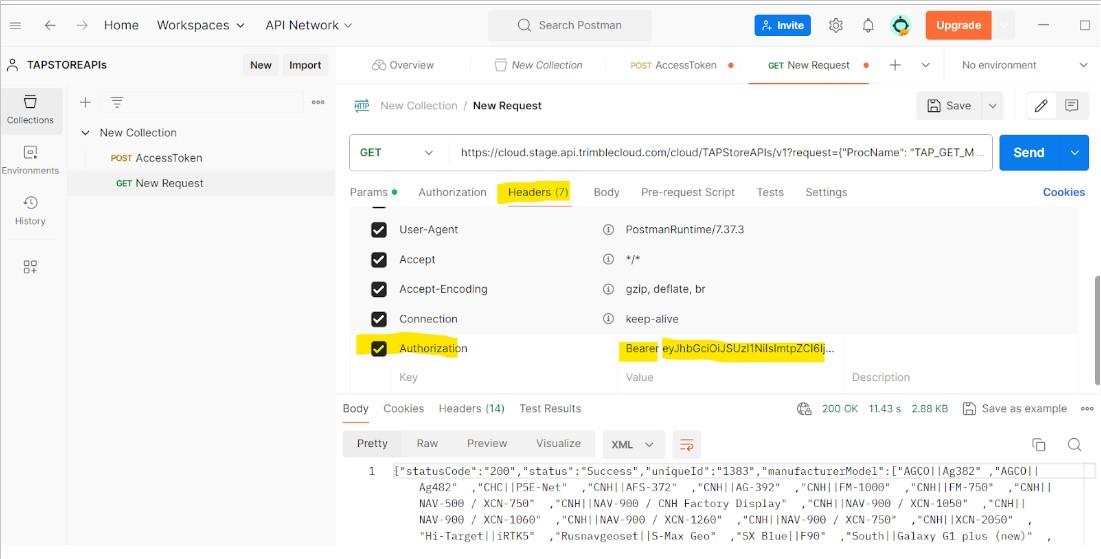
Navigate to Headers and add new parameter Authorization and value as Bearer <<access_token generated in Step 5>>.
And Click on Send button. If the request is successful http code 200 will be displayed along with the Response payload.
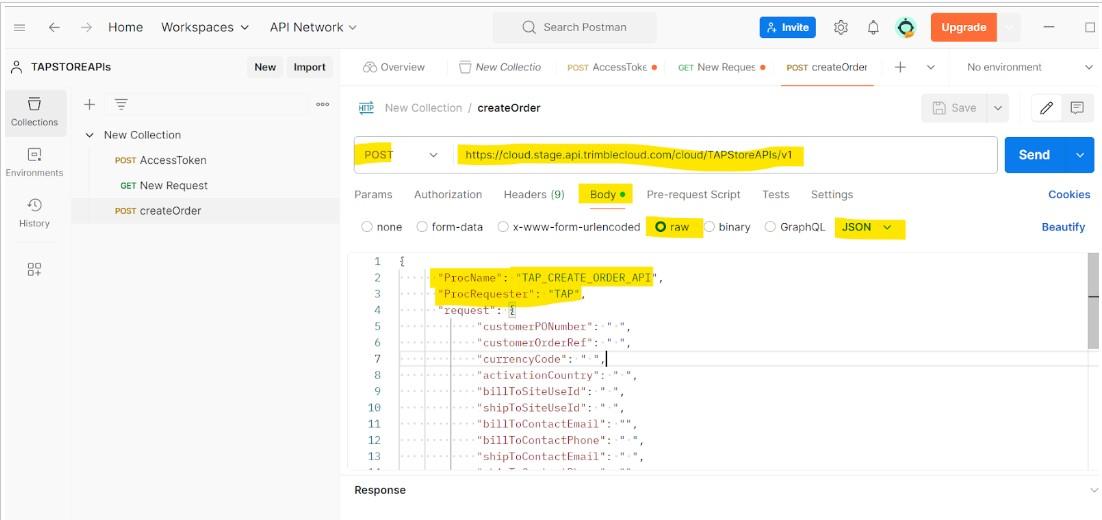
- For POST requests like createOrder or resendActivation; request payload needs to be entered in the Body per below screenshot.