How to Perform an Initial API Transaction
This guide walks through performing an initial Trimble API transaction with Trimble ID authentication. This can be achieved in only a few minutes by doing the following:
- Get a Trimble ID user profile
- Log into the Developer Console
- Create a new client application
- Pick a Trimble API product
- View the application credentials
- Get a Trimble ID access token
- Call an API endpoint
Trimble ID User
Section titled “Trimble ID User”If you do not have a user profile with Trimble yet, follow the directions provided to create a Trimble ID.
Developer Console
Section titled “Developer Console”Log into the Developer Console and follow the directions provided here to create a new application, pick the Trimble Connect API product with the Authorization Code grant type enabled (an End-User App), and then view the application credentials including:
- client-id: a unique identifier for the application
- client-secret: a private key used to prove the application’s identity during authentication
In addition to the application credentials, enter http://localhost:8181/callback as a callback or redirect URL for the application.
Authorization Code
Section titled “Authorization Code”We’ll now use the OAuth 2.0 Authorization Code flow to log a user in, and then exchange credentials for an access token from Trimble ID.
Interactive user login can be achieved in a variety of ways, but for this guide we’ll emulate it by pasting the following URL into a browser. Note the scope on the end of the URL, including both openid (needed for user login) and connect (a data access scope associated with the API product, in this case Trimble Connect).
Edit the CLIENT_ID below with the actual value as provided in the Developer Console:
https://id.trimble.com/oauth/authorize?client_id=CLIENT_ID&redirect_uri=http%3A%2F%2Flocalhost%3A8181%2Fcallback&response_type=code&scope=openid%20connectInteractive User Login
Section titled “Interactive User Login”This will bring up the Trimble ID login page, on which the user can enter their credentials. If authenticated, the browser will be directed to a URL like below:
http://localhost:8181/callback?code=CODEThe browser will likely display a page not found error, but the authorization code will be included in the address bar. The authorization code provided is for one-time use and can expire quickly.
Access Token
Section titled “Access Token”Next, we’ll exchange the CODE provided in that URL, along with the client application credentials, for a Trimble ID access token.
Edit the CLIENT_ID, CLIENT_SECRET, and CODE below with your actual values:
curl --request POST "https://id.trimble.com/oauth/token" \ --header "Authorization: Basic $(printf '%s' 'CLIENT_ID:CLIENT_SECRET' | base64 | tr -d '\n')" \ --header "Content-Type: application/x-www-form-urlencoded" \ --data-urlencode "code=CODE" \ --data-urlencode "grant_type=authorization_code" \ --data-urlencode "redirect_uri=http://localhost:8181/callback"If authenticated, this will return a JSON object like below with an access token granted. The value of access_token will be used in our API endpoint call.
{ "token_type": "Bearer", "expires_in": 3600, "access_token": "TOKEN", "refresh_token": "..", "id_token": ".."}If denied, the JSON object will return an error with a description like below to help identify what the problem could be:
{ "error": "invalid_grant", "error_description": "Invalid code '..'"}Endpoint Call
Section titled “Endpoint Call”Now that we’ve obtained an access token, we can use it to interact with Trimble API endpoints. The token must be included in the Authorization header as a Bearer token.
Edit the TOKEN below with the value of the access_token provided by Trimble ID:
The first example below will provide details from Trimble ID on the user who logged in earlier:
curl --location 'https://id.trimble.com/oauth/userinfo' \ --header 'Authorization: Bearer TOKEN'The next example will provide details on available regional cloud-based deployments of the Trimble Connect API.
curl --location 'https://us-east.api.trimble.com/connect/v2/regions' \ --header 'Authorization: Bearer TOKEN'Postman
Section titled “Postman”The directions below are intended for users who prefer not to use the command line and browser examples in this guide. To proceed, download and import this collection to Postman.
The image below is of a Postman client with the Authorization tab of the collection being viewed:
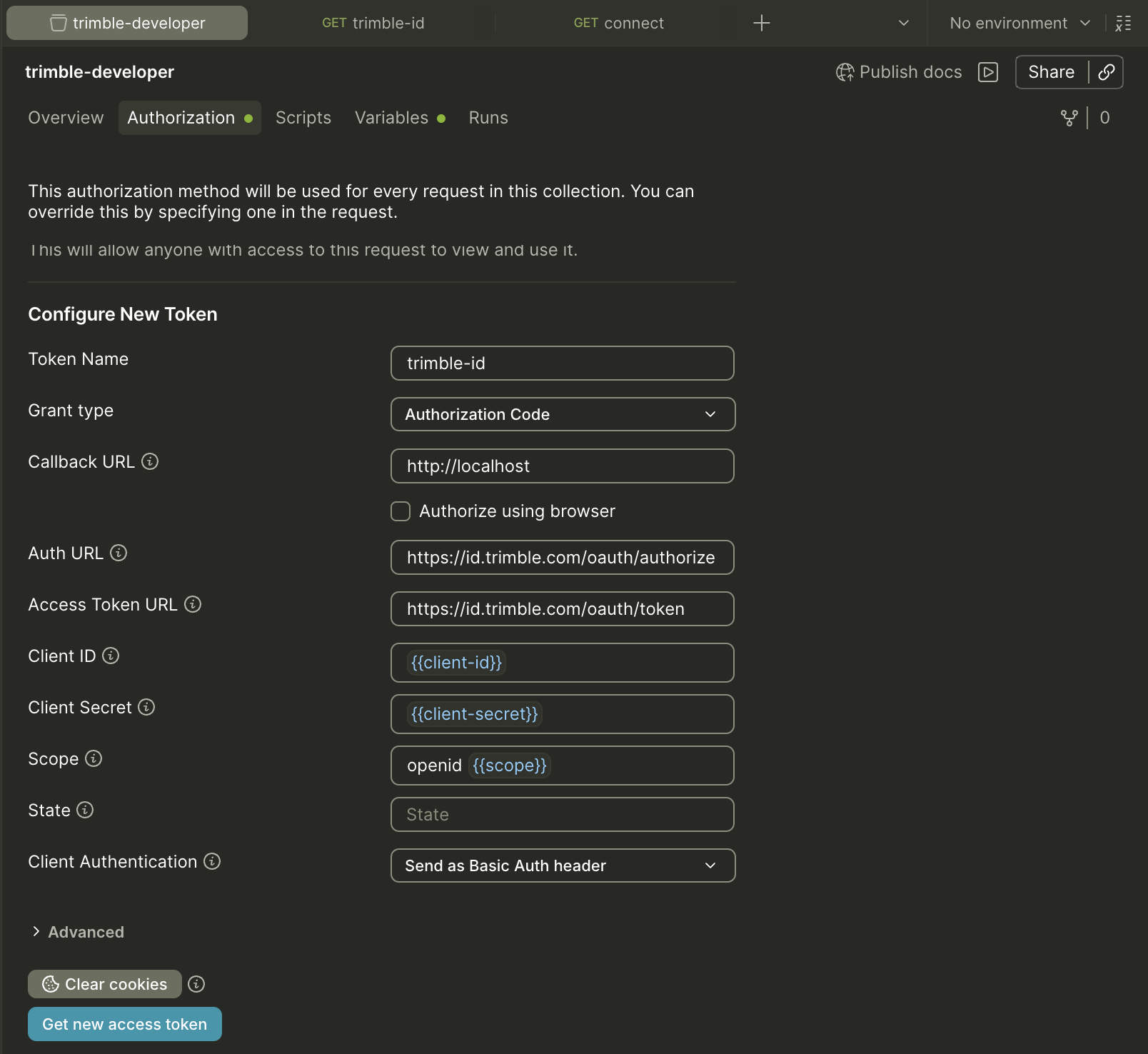
The field values are populated as covered in this guide, with the exception of the client-id and client-secret (provided earlier in the Developer Console), which need to be entered on the Variables tab. Enter those values and come back to the Authorization tab, then click the Get new access token button.
Note that the scope includes both openid and connect as noted earlier, too.
Trimble ID will prompt for user login and then provide a token which can be used in an API endpoint transaction.
The image below is of the Postman client with the Authorization tab of an example transaction being viewed:
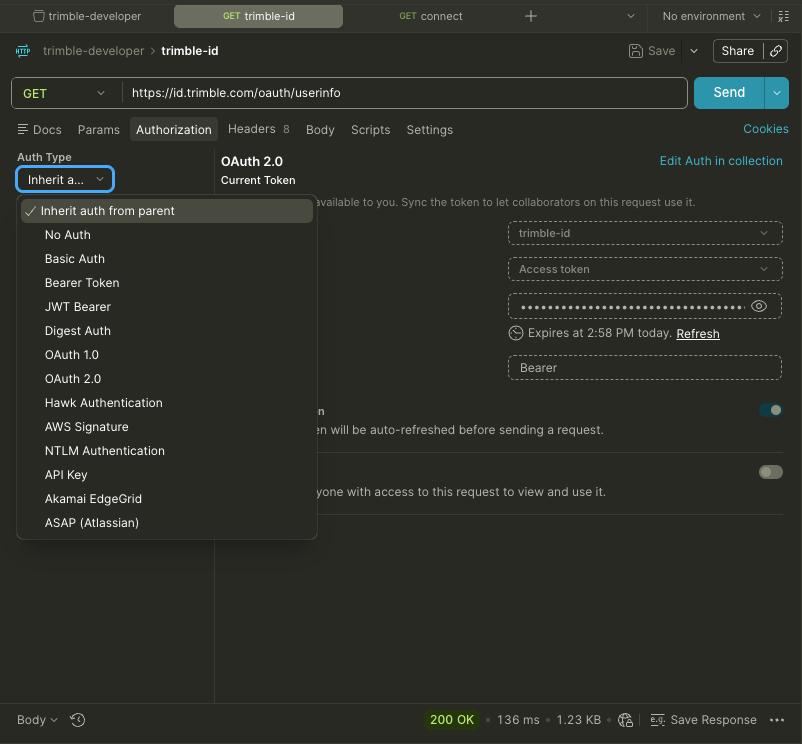
Note that we Inherit auth from parent (being the collection), and will therefore be using the access token provided earlier. This example call will get data from Trimble ID on the user who logged in.
The collection includes the Trimble Connect API example covered earlier in this guide, too, which can use the access token provided if the client application is associated with the Trimble Connect API product in the Developer Console.
What Next?
Section titled “What Next?”Now that we’ve performed an initial API transaction, we can proceed to building a cloud-based API integration with any Trimble API that leverages Trimble ID authentication with an API product available in the Developer Console.