Example Workflows
The ultimate goal of integrating with Trimble Mobile Manager is to receive location data from a Trimble GNSS receiver. The TMM API provides several ways to accomplish this, and the best approach depends on your application and user experience goals.
There are a few key principles to keep in mind when designing workflows for TMM:
- TMM requests (iOS URL Schemes, Android Intents, Windows URI Requests) necessarily interrupt the user experience by showing TMM UI.
- LocationV2 data stream is locked when TMM starts, and must be unlocked with one of the following:
- Successfully calling Register with a valid Application ID.
- iOS: tmmRegister
- Android: REGISTER
- Windows: tmmRegister
- Successfully using any REST API endpoint (except publicKey).
- Successfully calling Register with a valid Application ID.
Simple Workflow
Section titled “Simple Workflow”The simplest TMM API integration workflow is to register your application with TMM, and then start receiving location data.

- Register ensures that:
- TMM is running
- Your app is registered
- LocationV2 stream is unlocked
- Register causes TMM UI to show for a few seconds
- It’s up to the user to manage the GNSS receiver connection in TMM.
- The user can use the Connect to last-used receiver option in TMM Settings. This will automatically connect to the last used GNSS receiver when TMM starts.
Quiet Workflow
Section titled “Quiet Workflow”The drawback of calling Register is that it interrupts the user experience by showing TMM UI. After registering your app once, you will not need to refresh registration for several days. You can avoid unnecessary interruptions by using the following workflow:
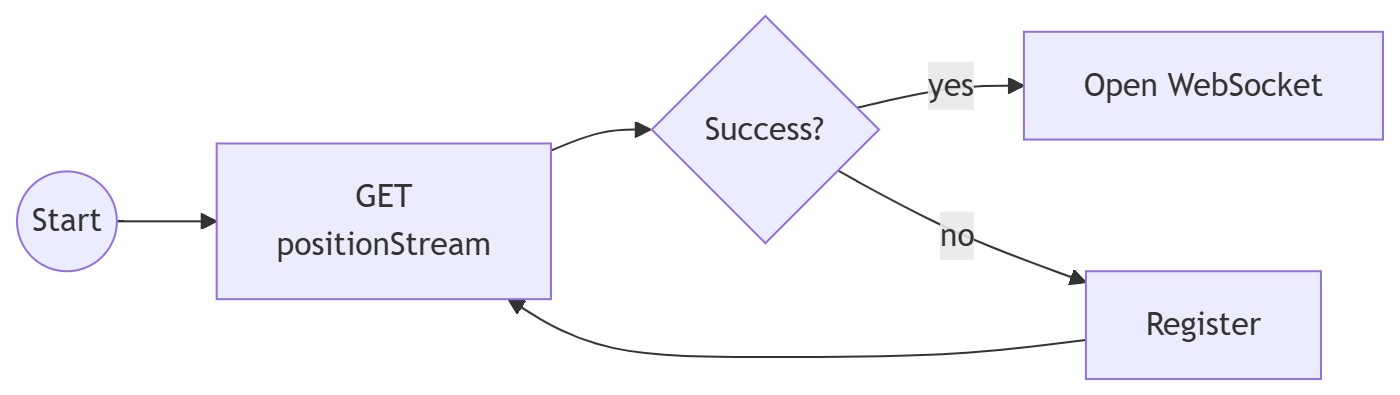
- Start by calling GET positionStream.
- If it succeeds, it will unlock the LocationV2 stream.
- If it fails, then TMM is not running or your app is not registered. Call Register to start TMM and register your app.
GNSS Receiver Management Workflow
Section titled “GNSS Receiver Management Workflow”This workflow is similar to the Quiet Workflow, but adds a step to ensure that the GNSS receiver is connected before starting the position stream. This workflow is useful for applications that want to ensure that they are receiving data from a GNSS receiver.
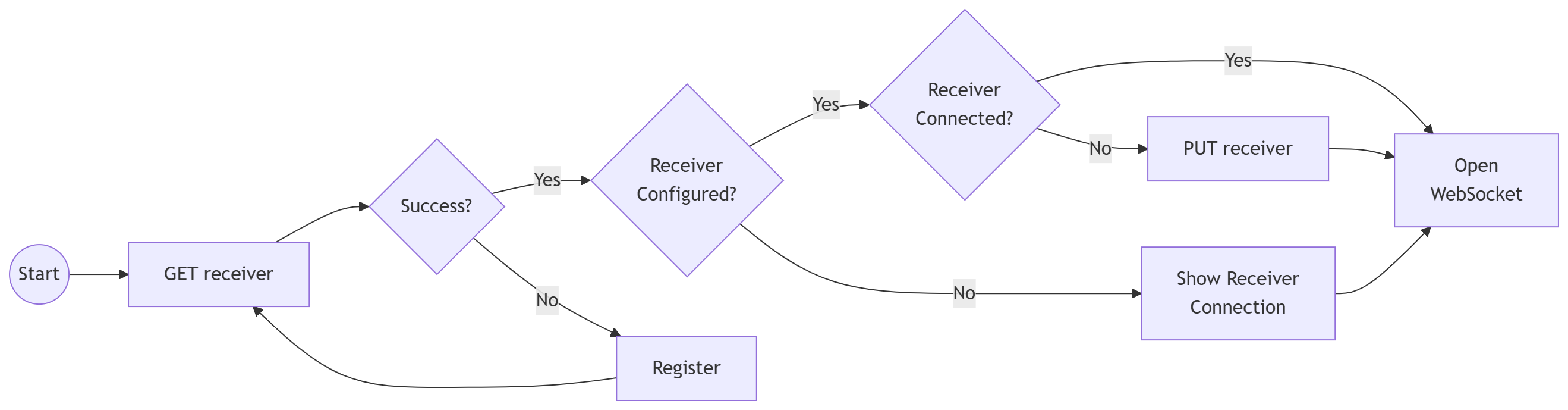
- After establishing that TMM is running and your app is registered, check the GNSS receiver status with GET receiver.
- If the GNSS receiver is not configured, show the GNSS receiver connection UI in TMM by calling tmmopentoreceiverselection (iOS), RECEIVERSELECTION (Android), or tmmOpenToReceiverSelection (Windows).
- If the GNSS receiver is configured, but not connected, use PUT receiver to start the connection.
- Once the GNSS receiver is connected, you can open the WebSocket connection.
Web Application Workflow
Section titled “Web Application Workflow”The workflow for a web application is more restrictive than for native applications.
- Web applications cannot use iOS URL Schemes, Android Intents, or Windows URI Requests to start TMM or register your application.
- Web applications must use Access Code V2 to auto-register your application via the REST API.
- Web applications must generate Access Codes on the backend. This keeps the Application ID secret from being exposed in the web application code.
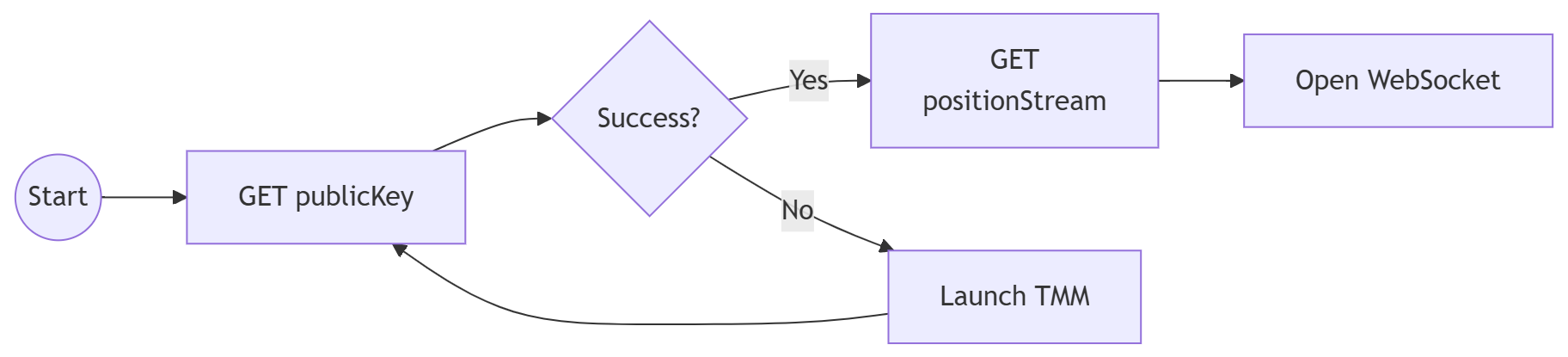
- Because we’re using Access Code V2, the first thing we need is to call the GET publicKey endpoint to get TMM’s public encryption key.
- If GET publicKey succeeds, TMM is running.
- If GET publicKey fails, you will need to prompt the user to start TMM manually.
- Once TMM is running, call GET positionStream to unlock the LocationV2 stream.
- You can now open the WebSocket connection to receive location data.